> ## Documentation Index
> Fetch the complete documentation index at: https://nightwatch.laravel.com/docs/llms.txt
> Use this file to discover all available pages before exploring further.
# Linear
> Create and link Linear issues directly from Nightwatch
 ## Getting started
> [Linear](https://linear.app/) is a 3rd-party project management tool for software teams that integrates with Nightwatch to help you track and manage issues more effectively.
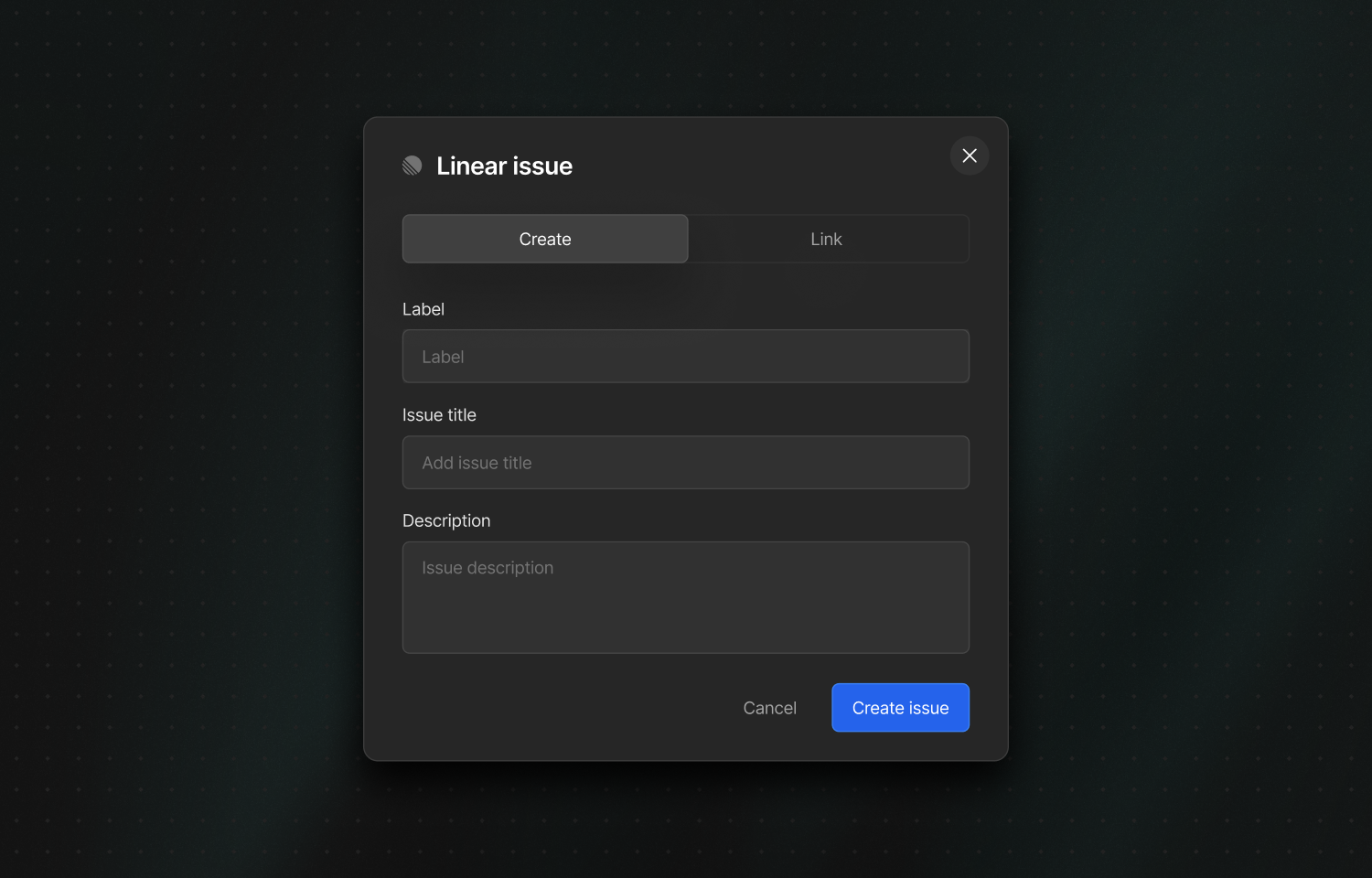
Connect Nightwatch to your Linear workspace to create and link Linear issues directly from Nightwatch. You can configure application-to-team mappings so issues created from specific Nightwatch applications are routed to the correct Linear team by default.
You must be an organization admin in Nightwatch to configure the integration.
In Nightwatch, go to your organization settings.
Select **Connect to Linear**, then choose the Linear workspace you want to link.
Optionally configure application-to-team mappings so issues created from specific Nightwatch applications are routed to the correct Linear team by default.
## Reconnecting or disconnecting
Having connection issues? Go to your organization settings and click **Reconnect to Linear** to re-authorize.
To remove the integration, go to your organization settings and click **Disconnect from Linear**. You can always reconnect later.
## Status synchronization
When a Nightwatch issue is linked to a Linear issue, Nightwatch keeps their status in sync so both systems reflect the same state.
**From Nightwatch to Linear**
* Marking an issue as **Resolved** in Nightwatch updates the linked Linear issue to a completed state.
* Marking an issue as **Open** in Nightwatch moves the linked Linear issue to a backlog state if it was completed or canceled.
* When multiple Nightwatch issues are linked to the same Linear issue, the Linear issue's status is updated only when all linked Nightwatch issues share the same status.
**From Linear to Nightwatch**
* Linear states **Backlog**, **Unstarted**, **Triage**, and **Started** update the Nightwatch issue to **Open**.
* Linear state **Completed** updates the Nightwatch issue to **Resolved**.
Status synchronization applies only to issues that have been linked to a Linear issue. Unlinked Nightwatch issues are not affected. Synchronization runs when you change status in either Nightwatch or Linear; no extra configuration is required once the Linear integration is connected.
## Getting started
> [Linear](https://linear.app/) is a 3rd-party project management tool for software teams that integrates with Nightwatch to help you track and manage issues more effectively.
Connect Nightwatch to your Linear workspace to create and link Linear issues directly from Nightwatch. You can configure application-to-team mappings so issues created from specific Nightwatch applications are routed to the correct Linear team by default.
You must be an organization admin in Nightwatch to configure the integration.
In Nightwatch, go to your organization settings.
Select **Connect to Linear**, then choose the Linear workspace you want to link.
Optionally configure application-to-team mappings so issues created from specific Nightwatch applications are routed to the correct Linear team by default.
## Reconnecting or disconnecting
Having connection issues? Go to your organization settings and click **Reconnect to Linear** to re-authorize.
To remove the integration, go to your organization settings and click **Disconnect from Linear**. You can always reconnect later.
## Status synchronization
When a Nightwatch issue is linked to a Linear issue, Nightwatch keeps their status in sync so both systems reflect the same state.
**From Nightwatch to Linear**
* Marking an issue as **Resolved** in Nightwatch updates the linked Linear issue to a completed state.
* Marking an issue as **Open** in Nightwatch moves the linked Linear issue to a backlog state if it was completed or canceled.
* When multiple Nightwatch issues are linked to the same Linear issue, the Linear issue's status is updated only when all linked Nightwatch issues share the same status.
**From Linear to Nightwatch**
* Linear states **Backlog**, **Unstarted**, **Triage**, and **Started** update the Nightwatch issue to **Open**.
* Linear state **Completed** updates the Nightwatch issue to **Resolved**.
Status synchronization applies only to issues that have been linked to a Linear issue. Unlinked Nightwatch issues are not affected. Synchronization runs when you change status in either Nightwatch or Linear; no extra configuration is required once the Linear integration is connected.