
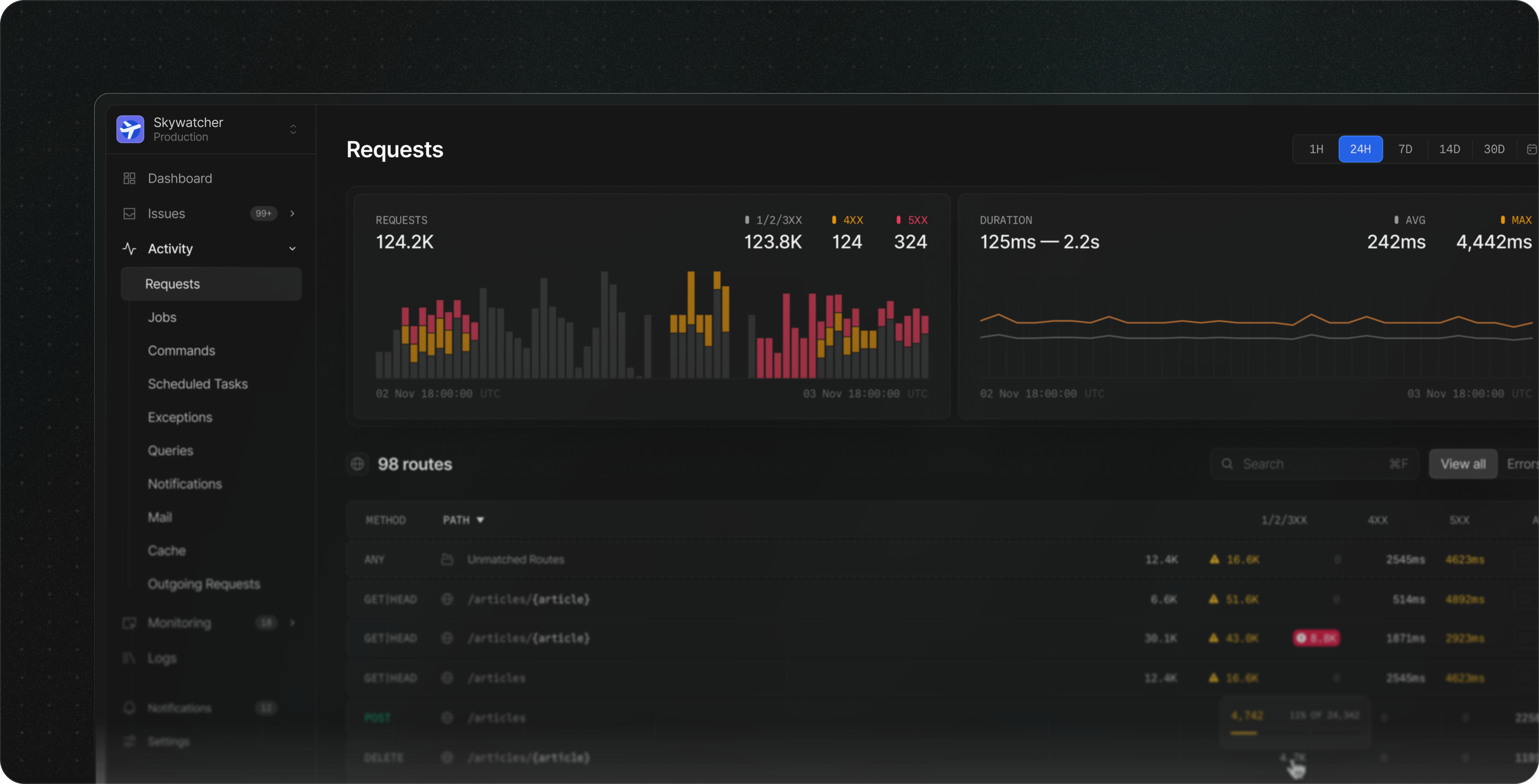
Registering an account
Visit nightwatch.laravel.com and register for a free account. After registering, you’ll be redirected to the organization creation page. From here, you can create a new organization or join an existing one if you have a pending invite.Creating an organization
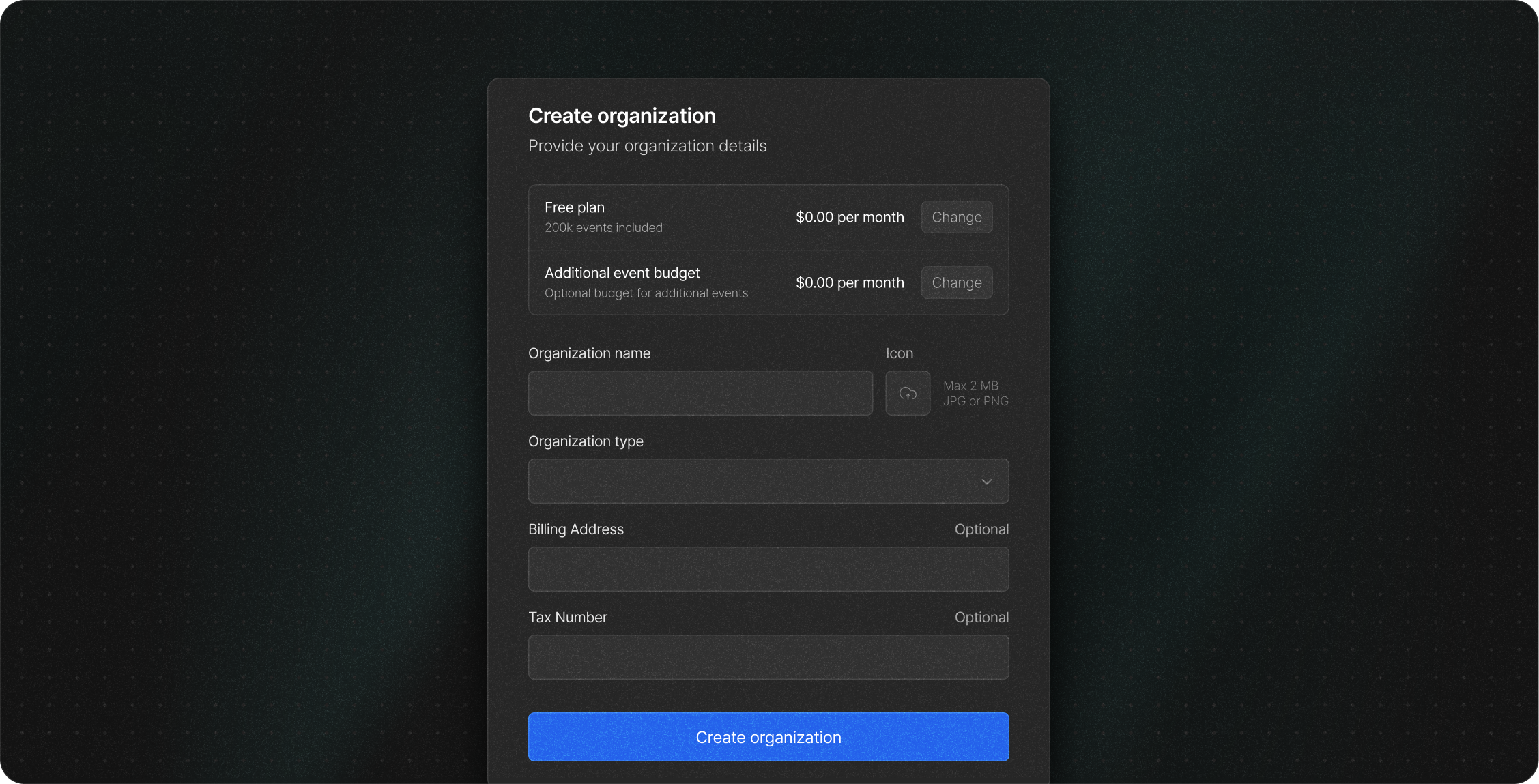
If you’re joining an existing organization, you’ll need to ask the owner to
invite you.
Creating an application
1
Access your dashboard
Go to nightwatch.laravel.com and log in to your account.
2
Create a new application
Click + New Application and provide the following:
- A name for your application
- A data region (US, EU or Australia)
- Details for your default environment (e.g. name, type)
3
Get your environment token
Once your application and its first environment are created, you’ll receive an environment-specific token. This token is required to authenticate the agent and send data to Nightwatch.
You can retrieve this token anytime from the Environments tab in your application settings.
Running the agent
1
Install the package
Add Nightwatch to your Laravel application using Composer:
2
Add your token
Add your environment’s
NIGHTWATCH_TOKEN to your .env file:3
Run the agent
The agent must be actively running to collect and send data to Nightwatch. Start the agent using the following Artisan command:
Adding a process monitor
Adding a process monitor
We strongly recommend using a process monitor to ensure the agent stays running in the background. We’ve created guides for Laravel Cloud, Laravel Forge, Laravel Vapor, Docker, and other providers to help you get started.
Monitoring agent health
Monitoring agent health
To monitor the health of the running agent, you may run the
php artisan nightwatch:status command to ensure the agent is able to accept connections.
The status command will exit with a non-zero status code in the event of an
error.Monitoring multiple apps on a single server
Monitoring multiple apps on a single server
If you’re hosting multiple Laravel applications on a single server, you may want to monitor each one independently with Nightwatch.The Nightwatch agent process is designed to monitor a single Laravel application in isolation. To monitor multiple applications on the same server, you’ll need to run a separate agent process for each one, with each agent listening on its own port.By default, the agent listens on port
2407. For each additional agent, you will need to set a different port by updating the NIGHTWATCH_INGEST_URI in your .env file and using the matching --listen-on flag when starting the agent.Verify your connection
After the agent has been running for a few minutes, you will see your data appear in the Nightwatch dashboard.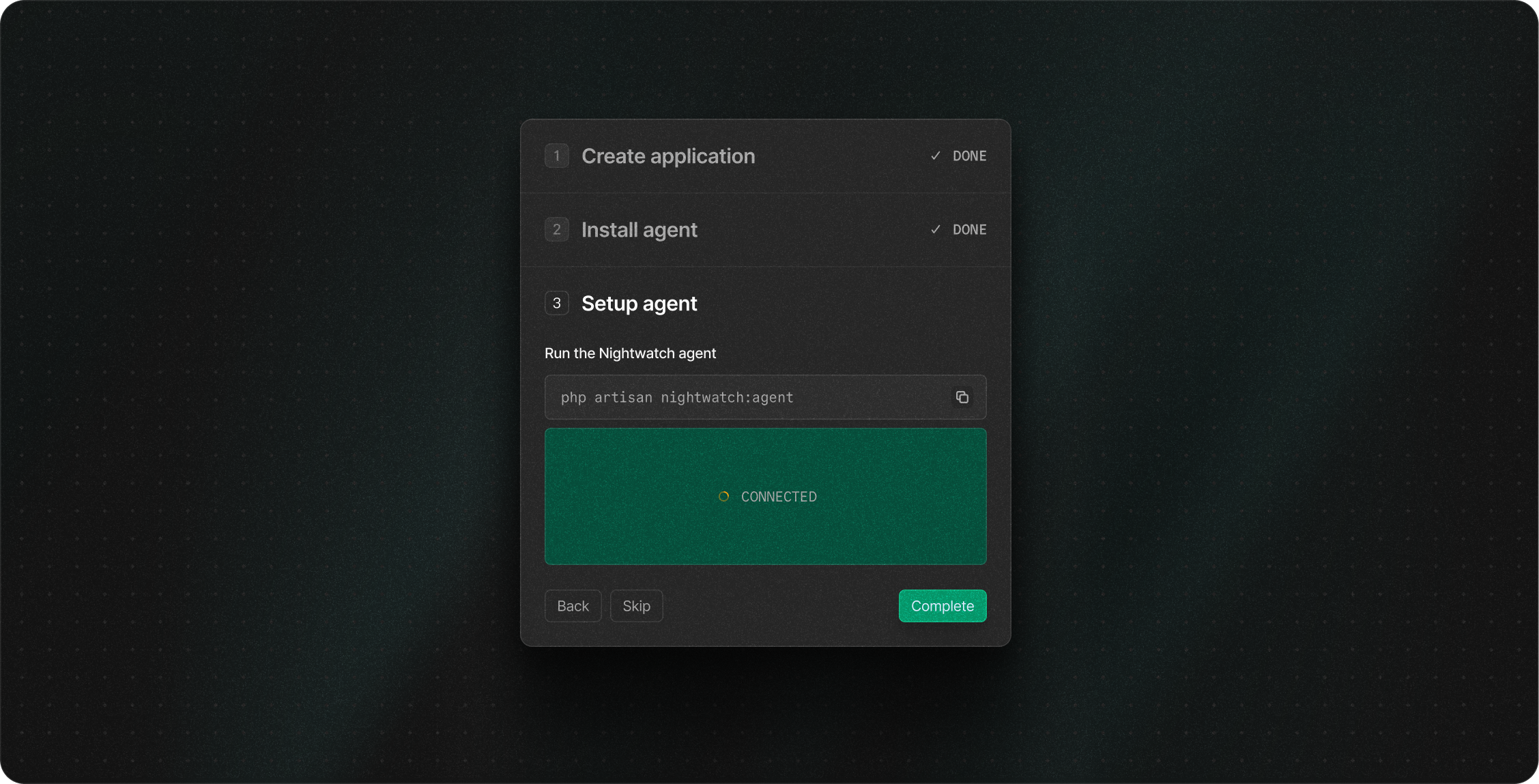
Disabling Nightwatch
By default, the Nightwatch package will start monitoring your application once installed. You may wish to disable Nightwatch during local development, your test suite runs, or temporarily in other environments. You may disable Nightwatch at any time by settingNIGHTWATCH_ENABLED=false in your environment. The easiest way to do that for local development and your local test suite runs is to set it in your project’s .env file:
.env
phpunit.xml file:
phpunit.xml